Fax from Microsoft Teams with DirectFAX: Set Up
in Under 5 Minutes with End-to-End Encryption
In today’s digital workplace, Microsoft Teams has become the central hub for collaboration, communication, and document sharing. For healthcare providers, insurance organizations, legal departments, and other businesses handling sensitive information, that raises an important question: Can you fax without leaving Teams, and still meet your security and compliance requirements?
With the ETHERFAX DirectFax for Microsoft Teams integration, the answer is yes. DirectFax lets your staff send, receive, and view faxes within the Microsoft Teams environment they already use every day. In many deployments, the initial setup takes less than five minutes, helping your organization modernize fax workflows without deploying a traditional fax server or forcing employees to learn another application.
Let’s break it down.
What Is DirectFax for Microsoft Teams?
DirectFax is a fax integration that brings business-critical faxing directly into Microsoft Teams. Instead of printing documents, walking to a physical fax machine, or switching between multiple applications, users can work with faxes from Teams on their desktop or mobile device.
The integration supports:
Outbound faxing from individual Teams users
Inbound fax delivery to named users
Inbound fax routing to Teams channels
Shared, mailbox-style fax workflows
Document viewing and collaboration inside Teams
Secure transmission through the ETHERFAX Secure Exchange Network (SEN)
Optional end-to-end encryption when supported endpoints are connected through SEN
Storage of fax documents within your Microsoft 365 and SharePoint workflow
Unlike traditional faxing, DirectFax keeps fax communications within your existing digital workspace. This reduces application switching, limits unnecessary handling of printed documents, and helps teams act on incoming information faster.
For organizations that rely on fax to exchange protected health information (PHI), claims documentation, authorizations, referrals, purchase orders, or legal records, that efficiency can be a significant operational advantage.
How Does Faxing from Teams Work?
DirectFax uses two primary types of Teams instances: named-user instances and Teams channel instances.
Named-user faxing
A named-user instance is a one-to-one DirectFax conversation associated with a specific Microsoft 365 user. It is designed for employees who need to send and receive faxes as part of their individual responsibilities.
A named user can typically:
Search and manage fax records
Attach a document in Teams
Enter a fax destination
Add a cover page, when required
Send an outbound fax
Receive inbound faxes in their DirectFax conversation
Review delivery status and fax activity
For example, a healthcare referral coordinator could send a patient referral packet from Teams without downloading the document, printing it, or using a standalone fax application. An insurance claims examiner could receive correspondence directly in Teams and continue collaborating with colleagues in the same Microsoft 365 environment.
Teams channel faxing
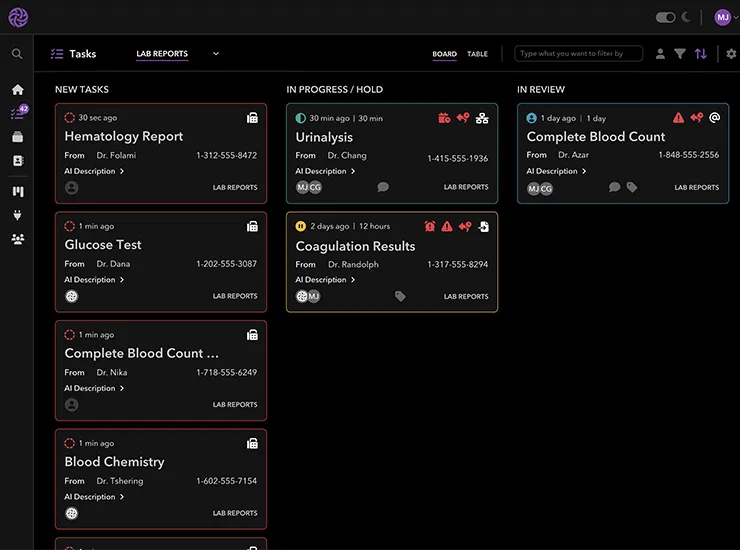
A Teams channel instance creates a shared destination for inbound faxes. This is especially useful when several employees need access to the same documents or when faxed information should be routed according to a department, location, or business process.
Common examples include:
A purchasing team’s Purchase Orders channel
A healthcare organization’s Admissions channel
An insurance company’s Claims Intake channel
A financial services firm’s Loan Processing channel
A legal department’s Records channel
Incoming faxes can be routed to the appropriate channel, where authorized team members can view and process them. This creates a shared inbox experience and reduces the risk that a fax will be delivered to an unattended machine or an employee who is out of the office.
> Important workflow note: In the current DirectFax Teams model, the one-to-one named-user instance is the documented method for both sending and receiving faxes. Teams channels are designed primarily for shared inbound fax delivery. However, channels can still support complete inbound and outbound business workflows because team members can collaborate in the channel while authorized users initiate outbound faxes through their DirectFax user instance.
Set Up DirectFax in Under Five Minutes
Step 1: Confirm Microsoft Teams permissions
Before installation, verify that:
- Users have permission to install approved Teams applications
- Your Microsoft 365 tenant permits the DirectFax application
- A Microsoft Teams administrator can grant consent if required
- Your organization has an ETHERFAX account and fax resources available
If a user sees a “Need admin approval” message, your Teams or Microsoft Entra administrator may need to approve DirectFax Messenger.
Step 2: Install DirectFax for a named user
For individual faxing:
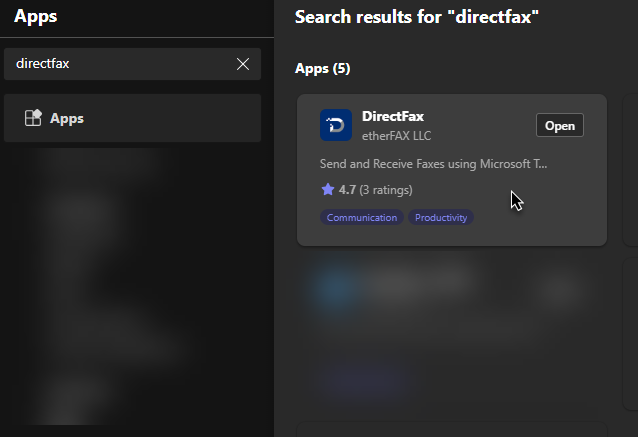
- Open Apps in Microsoft Teams.
- Search for DirectFax.
- Open the DirectFax application in personal scope.
- Follow the registration or pairing prompts.
- Associate the user with the appropriate ETHERFAX account or fax route.
Once registered, the user can send and receive faxes from the DirectFax one-to-one chat.
Step 3: Add DirectFax to a Teams channel
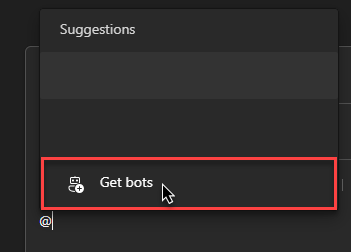
For shared inbound fax workflows, administrators or authorized users can add DirectFax to a channel by either of these methods:
- Type
@in a new channel message and select Get bots, then search for DirectFax. - Open Apps, search for DirectFax, choose Add to a team, select the target channel, and click Set up.
After installation, the DirectFax instance must be paired with your ETHERFAX account and assigned an appropriate fax number or routing rule.
For most organizations, the basic app installation can be completed in less than five minutes. Account pairing, number assignment, routing, security policies, and testing may require additional time depending on your environment.
End-to-End Encryption for Sensitive Documents
Security is not optional when your organization is transmitting patient records, insurance documents, financial information, or legal correspondence. A convenient workflow is valuable: but only when it protects the information moving through it.
DirectFax operates through ETHERFAX’s Secure Exchange Network, or SEN. The network is designed for secure digital document exchange and supports encrypted transmissions between connected devices, applications, and services.
When the appropriate endpoints are connected to SEN and the feature is enabled, DirectFax can support end-to-end encryption. This means the document remains protected across the secure exchange path rather than relying solely on an exposed or unsecured transfer between applications.
ETHERFAX describes its environment as supporting:
HIPAA-compliant operations
HITRUST CSF certification
SOC 2 compliance
PCI DSS certification
Secure document transmission and storage workflows
However, your organization should confirm the exact encryption configuration for each workflow. When a fax is sent to a traditional fax machine over the public switched telephone network (PSTN), the digital portion of the transmission can be secured, but the analog fax leg itself cannot provide cryptographic end-to-end encryption in the same way as a fully connected SEN-to-SEN exchange.
This distinction matters. No system is entirely foolproof, and encryption does not replace access controls, employee training, correct fax-number verification, or appropriate retention policies. Your IT and compliance teams should evaluate the entire workflow: not just the application interface.
For additional background, Ingenium explains the security considerations in Why Your Business Needs Secure Cloud Faxing and Is Cloud Fax HIPAA Compliant?.
Why Teams-Based Faxing Matters for Healthcare and Insurance
Healthcare and insurance organizations often depend on fax because many external providers, payers, attorneys, laboratories, and government agencies still use it. The challenge is not simply sending a fax. It is managing the surrounding workflow securely and efficiently.
Consider a few practical examples:
Healthcare referrals
A referral arrives in an Orthopedics or Specialty Referrals Teams channel. Staff can access the document, assign follow-up work, and coordinate next steps without searching for a paper fax or shared inbox.
Insurance claims
Incoming accident reports, medical records, and supporting claim documents can be routed to a Claims Intake channel. Multiple authorized examiners can review the documents, reducing delays caused by a single point of failure.
Financial services
Loan applications and supporting documents can be delivered to a secure channel for processing. Named users can send requests or completed forms through their DirectFax conversation while the broader team tracks progress in Teams.
Legal operations
A legal services team can route incoming court documents, signed authorizations, or records requests to the relevant case-management channel. This supports collaboration while maintaining a digital record of the communication.
In essence, DirectFax helps preserve fax interoperability while bringing the process into a modern collaboration platform.
Best Practices for Implementing DirectFax
A fast installation is helpful, but a thoughtful rollout is what creates lasting value. Before expanding the integration across your organization, consider these recommendations:
Monitor performance. Review delivery times, failed transmissions, routing accuracy, and user adoption.
Define named-user responsibilities. Determine who needs outbound faxing, private inbound delivery, or both.
Create channel-based routing rules. Map fax numbers to departments such as Admissions, Claims, Records, or Accounts Payable.
Use least-privilege access. Only authorized Teams members should access sensitive fax channels.
Verify fax numbers. A wrong destination can expose confidential information even when the transmission platform is secure.
Establish retention policies. Align Teams, SharePoint, and fax-document retention with your legal and regulatory obligations.
Train users on attachments and notifications. Employees should understand how to send documents, recognize delivery results, and report unexpected activity.
Test real workflows. Send test faxes to internal and external destinations before going live.
The goal is not merely to put a fax button inside Teams. The goal is to create a reliable, auditable, and secure communication process that supports the way your organization actually works.
Work with Ingenium, the Fax Experts
Ingenium brings nearly 30 years of fax-industry experience to mission-critical communication projects. We understand that your fax environment may include Microsoft Teams, Office 365, electronic health record systems, document-management platforms, fax servers, copiers, and legacy numbers that cannot be disrupted.
Our team can help you:
Evaluate your current fax workflows
Plan named-user and Teams channel deployments
Configure inbound routing and fax numbers
Review encryption and compliance requirements
Connect DirectFax with your broader cloud fax strategy
Support healthcare and insurance workflows
Provide guidance for migration, testing, and user adoption
Contact Ingenium to discuss your Microsoft Teams faxing requirements, or explore our fax services to see how we support cloud, on-premises, API, and hybrid environments.
Gone are the days when faxing required a dedicated machine, printed documents, and a walk down the hallway. With ETHERFAX DirectFax for Microsoft Teams, your users can fax from the collaboration platform they already know: often with setup completed in under five minutes and secure, end-to-end encrypted exchange available for supported SEN-connected workflows.
Now is the time to make faxing flow with the rest of your digital business.
Sources and implementation references
How to register DirectFax with your ETHERFAX account
ETHERFAX DirectFax for Microsoft Teams documentation